Kubernetes guide
Deploy a Multi-Node Kubernetes Cluster on Hetzner
A Hetzner dedicated server gives you far more CPU, memory, and disk for the money than cloud VMs, but it comes with nothing on it. This guide turns three dedicated servers into one Kubernetes cluster: you connect them with a private network, and Wodby installs K3s on them, joins them together, and keeps them updated.
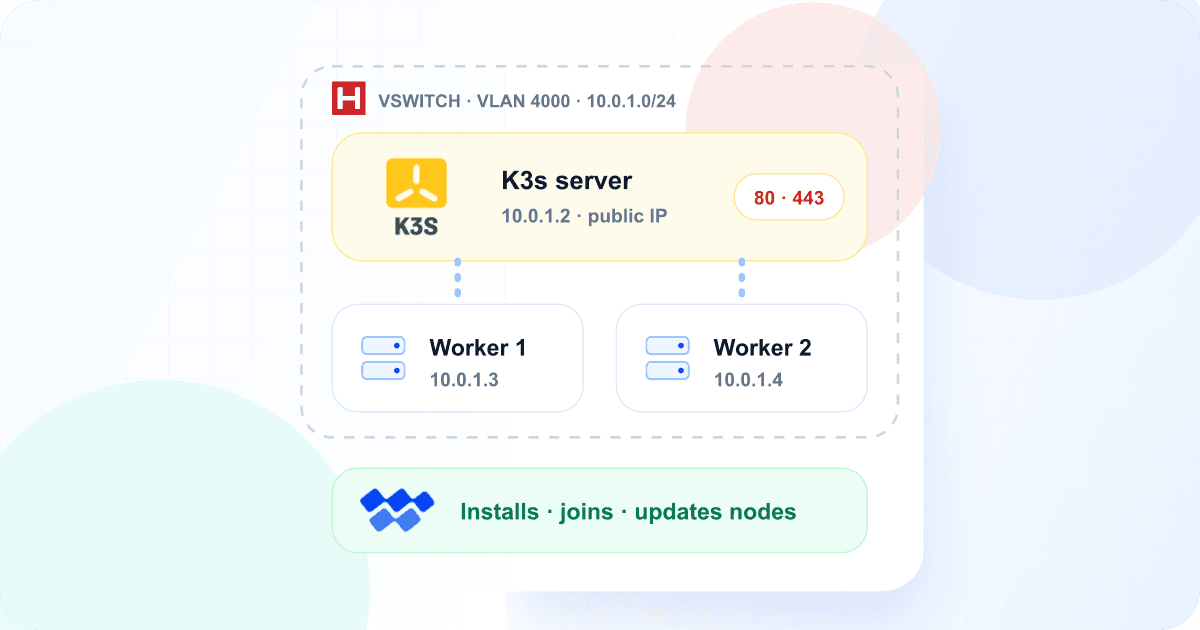
What you will build
- A K3s cluster with one server and two worker nodes, connected over a Hetzner vSwitch. Traffic between them is private and free.
- One public entry point: your domains point to the K3s server's IP, and Wodby routes requests to apps on any node.
- Optional firewall rules in Hetzner Robot. Wodby talks to the cluster over an outbound connection, so nothing needs to be opened for Wodby.
- Package updates, restarts, and Kubernetes upgrades that Wodby runs one node at a time, moving apps off each node first.
Prefer Hetzner Cloud servers? The Wodby steps are the same; see Use Hetzner Cloud servers instead for the parts that differ.
Is this the right setup?
Worker nodes give your apps more CPU, memory, and disk than one server has, and let Wodby restart one server without stopping apps on the others. They don't make the cluster highly available:
- The K3s server runs Kubernetes and takes all public traffic. While it is down, every app on the cluster is unreachable.
- App volumes are stored on the disk of the node where the app first started, and the app always runs on that node. If a node is lost, so is the data on it. Keep backups.
If you need a control plane that survives a server failure, use managed Kubernetes instead.
What you need
- A Hetzner account with access to Robot.
- A Wodby organization and permission to create clusters in it.
- About an hour once the servers are ready, and SSH access to them.
1. Choose and order the servers
- x86 servers. K3s on Wodby needs amd64 machines, so pick from the AX (AMD) or EX (Intel) lines, not the Arm-based RX line. The server auction sells used x86 servers without a setup fee.
- One location. Put all servers in the same location, such as Falkenstein. Traffic between locations slows down requests between apps on different nodes.
- Enough disk for your data. App volumes live on each server's own disks, next to container images and logs. Hetzner's installer sets up two identical disks as software RAID 1 by default, so one failed disk doesn't lose your data. Keep it that way.
- The newest Ubuntu LTS, or another supported Linux: see the requirements. Choose it when you order, or install it later from the rescue system. Wodby installs updates within that release but never moves a server to a new release, so starting on the newest one gives you the longest support.
This guide uses these names and addresses:
| Role | Name | vSwitch address | Job |
|---|---|---|---|
| K3s server | k3s-server | 10.0.1.2 | Runs Kubernetes, takes all public traffic, and runs apps too. |
| Worker | k3s-worker-1 | 10.0.1.3 | Runs apps. Takes no public traffic. |
| Worker | k3s-worker-2 | 10.0.1.4 | Runs apps. Takes no public traffic. |
2. Name each server
The hostname becomes the node name, and every node needs its own. Hetzner's installer names a server after its operating system image, so servers installed from the same image share a hostname. Log in to each one and set its own, for example on the K3s server:
sudo hostnamectl set-hostname k3s-server3. Create the vSwitch
The nodes talk to each other over a private network. K3s picks the address it uses for cluster traffic when it is installed, so the network has to work before you install anything.
- In Hetzner Robot, open Server → vSwitches and create a vSwitch with VLAN ID
4000. Any ID from4000to4091works. - Add all three servers to it.
4. Configure the private interface
On each server, add an interface on the vSwitch with its own address. First find the name of the main network interface:
ip -brief linkOn Ubuntu, create /etc/netplan/60-vswitch.yaml. Replace enp0s31f6 with your interface name and 10.0.1.2 with the server's address from the table above:
network:
  version: 2
  vlans:
    enp0s31f6.4000:
      id: 4000
      link: enp0s31f6
      mtu: 1400
      addresses:
        - 10.0.1.2/24
Hetzner requires MTU 1400 on vSwitch interfaces; larger packets are dropped. Apply the file:
sudo chmod 600 /etc/netplan/60-vswitch.yaml
sudo netplan try
netplan try rolls the change back unless you confirm it within two minutes, so a mistake doesn't cut off your SSH access. When all three servers are done, check from each worker that it lists its private address and that full-size packets reach the K3s server:
ip -brief address
ping -c 3 -M do -s 1372 10.0.1.2
5. Set up the Robot firewall (optional)
Wodby installs its own host firewall on every node, which accepts the cluster's internal ports only from private addresses. Hetzner's Robot firewall adds a filter in front of the server. If you use it, keep two things in mind:
- It filters vSwitch traffic too. Without a rule for your private range, it cuts the nodes off from each other.
- It is stateless: it doesn't let in the replies to the server's own outgoing connections, such as the one to Wodby, unless a rule allows them.
Add these incoming rules on each server before you activate the firewall, and turn on Hetzner Services for DNS and the rescue system:
| Name | Source IP | Source port | Destination port | Protocol | TCP flags | Servers |
|---|---|---|---|---|---|---|
| ssh | Your IP address | 22 | tcp | All | ||
| http | 80 | tcp | K3s server | |||
| https | 443 | tcp | K3s server | |||
| vswitch | 10.0.1.0/24 | * | All | |||
| tcp replies | 32768-65535 | tcp | ack | All | ||
| ntp replies | 123 | 32768-65535 | udp | All |
If you later publish a TCP or UDP port of an app, add a rule for it on the K3s server too. A Robot firewall takes at most 10 rules per direction.
6. Connect the K3s server to Wodby
- In Wodby, open Clusters → Connect server.
- Enter a name and title, and set Provider to Hetzner. Leave monitoring and automatic upgrades on unless you have a reason not to.
- Create the cluster. Wodby shows a one-time installation command. Run it on
k3s-serverasrootwithin 15 minutes; if it expires, reload the page for a new one. - Wait until the cluster status is OK. This takes a few minutes.
The command installs K3s, Cilium for pod networking and network policies, Wodby's host firewall, and the outbound connection to Wodby. Wodby then deploys Envoy Gateway for public traffic, and monitoring if you left it on.
The server now has two addresses, and the installer gives each its own job. The vSwitch address carries cluster traffic between nodes. The public address takes your apps' traffic, and Wodby detects it on its own: it is the cluster's public IP for your DNS records. Open Clusters → [Cluster] → Nodes to check: the server's internal IP is 10.0.1.2 and its public IP is the main IP Robot shows for the server.
7. Add the worker nodes
For each worker:
- Open Clusters → [Cluster] → Nodes and click Add node.
- Run the command on the worker as
rootwithin 15 minutes. - Wait until the node shows as Ready.
The join command first checks that the worker reaches the K3s server over the private network. It then sets the worker up like the server, with the same host firewall and protections, and installs the same K3s version. The node list shows each node's status, CPU, memory, disk, and addresses.
8. Deploy apps
Create an app from any stack and choose your cluster from My clusters. Point the app's domains to the K3s server's public IP. From there:
- Kubernetes places new pods on any Ready node. Requests enter through the K3s server and reach pods on workers over the vSwitch.
- When you create an app, Wodby checks that its volumes fit on the nodes. If they fit on some nodes but not all, you see a warning; the app is refused only when they fit on none.
- Set up backups for every app with data: a volume belongs to one node.
9. Keep the cluster running
Wodby keeps K3s and the cluster's infrastructure up to date. It changes the servers' operating systems only when you ask:
- Wodby checks every node's packages for known vulnerabilities each day and lists them on the cluster's Security tab.
- Update server packages on the Nodes tab installs your distribution's updates on one node at a time while your apps keep running.
- Restart servers restarts the nodes that need it, one at a time. Wodby moves each node's apps to the other nodes when they have room, and waits until the node is back before the next one. Apps with volumes on a node stay on it and are unavailable while it restarts. While the K3s server restarts, every app is unreachable, so restart it in a maintenance window.
- Kubernetes upgrades update the K3s server first, then each worker in turn, moving its pods to other nodes before the upgrade.
Need more room? Order another server and repeat steps 2, 4 and 7, adding it to the vSwitch. To remove a worker, click Remove on it: Wodby moves its pods away and takes it out of the cluster. Wodby refuses while the worker holds app volumes, so their data isn't lost; migrate or delete those app environments first.
Use Hetzner Cloud servers instead
Cloud servers are ready in seconds and set up their private network for you. Steps 6 to 9 stay the same; replace steps 1 to 5 with these:
- Use dedicated vCPU plans (CCX). K3s on Wodby needs dedicated CPU and amd64 machines, so shared CX and CPX plans and Arm-based CAX plans don't fit.
- In the Hetzner Cloud Console, create a network under Networks with the IP range
10.0.0.0/16. - Under Firewalls, create one firewall for the K3s server that allows TCP
22from your IP address and TCP80and443from anywhere, and one for the workers that allows only TCP22from your IP address. Cloud Firewalls track connections and don't filter traffic on the network, so they need no other rules. - Create the servers in one location with the newest Ubuntu LTS image. Keep their public IPv4 addresses, select the network and the matching firewall, and give each server its own name: it becomes the hostname and the node name.
- Hetzner gives each server an address on the network and sets it up on its standard images. Check from each worker:
ip -brief address
ping -c 3 10.0.0.2
To mix both kinds in one cluster, couple the vSwitch to a Cloud Network. Hetzner allows this only in Falkenstein, Nuremberg, and Helsinki; the docs show the routes the dedicated servers need.
Already running K3s on one Hetzner server?
A K3s server installed without a private network uses its public address for cluster traffic, and the join command refuses to add workers to it. You don't have to reinstall:
- Connect the server to a vSwitch as in steps 3 and 4, or attach a Cloud server to a Cloud Network, and check that
ip -brief addresslists its private address. - Open Clusters → [Cluster] → Nodes, click Switch to private address, and choose the address.
K3s restarts once. Your apps keep running, and the server keeps its public IP, so domains and DNS records stay the same. If K3s doesn't come back on the new address, the server returns to its previous settings. Then add workers as in step 7.
If something goes wrong
- The full-size
pingfails but a normal one works. The vSwitch interface isn't at MTU1400on one of the servers. - The join command can't reach port 6443. Check that the worker is on the same vSwitch, that
pingto the K3s server's private address works, and that the Robot firewall allows your private range. - The join command says the server uses its public address. The server was installed before its private network worked. Switch it as described above.
- An installation failed partway. Run
sudo /usr/local/bin/wodby-k3s-uninstallon that server, then run a fresh command.
The K3s cluster docs cover worker nodes, pods per node, and proxies in full. For what Wodby sets up on a single Hetzner server, see Kubernetes on Hetzner. Hetzner's own docs cover the vSwitch and the Robot firewall in detail.