Private access guide
Deploy Apps Privately with Tailscale
Give a whole Wodby app or selected HTTP endpoints stable HTTPS addresses inside your Tailscale tailnet, while keeping the matching routes off Wodby's ordinary public gateway.
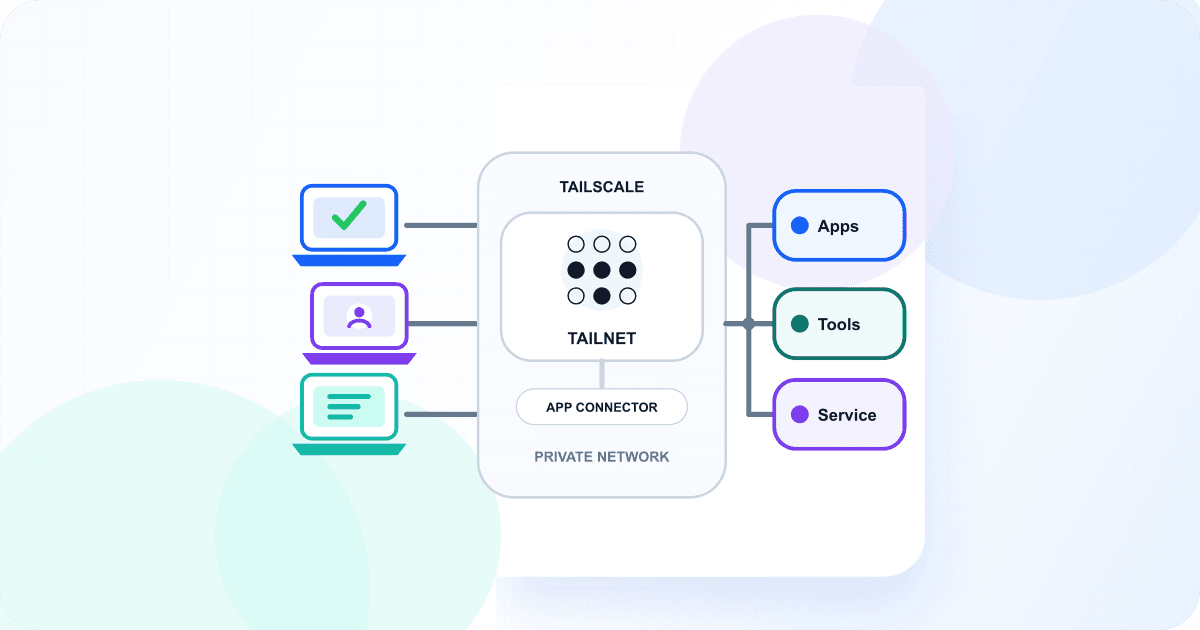
Application Access, not a Tailscale Node
This guide uses the Application Access integration type. Wodby creates and manages connectors for the app's HTTP endpoints. The separate Tailscale Node integration type is for a standalone Tailscale stack or a custom stack where the node itself is the workload being deployed.
What you need
- A Wodby account and a Kubernetes cluster using app routing.
- A Wodby app with at least one enabled external HTTP endpoint.
- A Tailscale account and access to its admin console.
- Permission to create tags and OAuth credentials and to enable tailnet DNS features.
- The Tailscale client installed and connected on every device that should reach the private app.
1. Prepare the tailnet
- In the Tailscale admin console, open Access Control → Tags and create a tag named
wodby. - Open DNS and enable both MagicDNS and HTTPS Certificates.
- Copy the Tailnet DNS name shown on the DNS page. Wodby uses this suffix when it assigns endpoint hostnames.
- Review the tailnet's access controls. Users and devices that need the app must be allowed to reach devices carrying the
tag:wodbytag over HTTPS. Wodby does not create or change these rules.
2. Create scoped OAuth credentials
- Open Settings → Trust credentials in the Tailscale admin console and create OAuth credentials.
- Use a recognizable description such as
wodby. - Grant Write access to both Auth Keys and Devices.
- Restrict the credentials to
tag:wodbyand copy the generated Client ID and Client Secret.
The OAuth credentials let Wodby create short-lived connector credentials and retire the devices it owns. The tag restriction prevents those credentials from creating unrelated untagged devices in the tailnet.
3. Create the Wodby integration
- Open Integrations in the Wodby dashboard and select New integration.
- Choose Tailscale, then select the Application Access type.
- Enter the OAuth Client ID and Client Secret.
- Enter the Tailnet DNS name copied from the Tailscale DNS page and create the integration.
4. Enable Tailscale access for the app
For a new app, configure Access in Step 4, App settings. For an existing app environment, open Settings → Access. Then choose:
- Set the Wodby Access mode to Protected. This is the top-level choice meaning the ordinary public route will not be used.
- Select the Tailscale Application Access integration.
- Choose Entire app or Selected endpoints.
Tailscale provides the Private network access type automatically. There is no DNS-zone, policy, or primary-hostname input in Wodby because the tailnet supplies DNS and access control.
Entire app
Every enabled external HTTP destination receives a tailnet address. A Drupal or WordPress app can have separate private hostnames for the site and tools such as Mailpit.
Selected endpoints
Only the chosen HTTP destinations move to Tailscale. Use this when the main site should stay public but an admin interface, preview service, or operational tool should not.
5. Deploy and verify access
Wodby suppresses the selected public routes before the first deployment and waits for the workload to become ready. It then creates scoped auth keys, joins its endpoint connectors to the tailnet as tagged devices, and assigns stable HTTPS hostnames.
- Wait for the app deployment and Application Access task to complete successfully.
- Connect your device to the same tailnet and confirm Tailscale is active.
- Open the Tailscale-marked
*.ts.neteffective URL shown by Wodby in the app header or route list. - Disconnect Tailscale and confirm the private address can no longer reach the app.
Wodby derives each hostname from the app, app environment, service or port, and Tailnet DNS name. Routes and aliases that target the same HTTP port share one Tailscale endpoint hostname.
Troubleshooting
- The hostname does not resolve: confirm MagicDNS is enabled, the integration has the correct Tailnet DNS name, and your device is connected to that tailnet.
- HTTPS does not work: confirm HTTPS Certificates are enabled on the Tailscale DNS page and wait for the Access task to finish.
- The connection is denied: review tailnet grants or ACLs and confirm the user or device can reach
tag:wodbyover HTTPS. - Integration validation fails: confirm the OAuth credentials have Write access to Auth Keys and Devices and are scoped to the existing
wodbytag. - Access shows an error: open the Access task from the app state indicator and review the provider or connector step that failed.
Changing or removing access
Update the scope or selected endpoints from Settings → Access. To move the app to another Application Access provider, remove Access and enable it again with the replacement integration after cleanup completes.
Removing Access restores the matching ordinary public routes and removes Wodby-managed endpoint devices, auth keys, connector secrets, and cluster resources. Wodby does not remove the wodby tag, MagicDNS or HTTPS settings, tailnet access rules, or unrelated Tailscale devices.
Deploy your private app
Create the Tailscale Application Access integration, then give the whole app, or only the endpoints you choose, stable addresses inside your tailnet.
Open WodbyFor the product overview, see Application Access. For the complete provider contract and cleanup behavior, see the Tailscale provider documentation and Application Access documentation.