Application Access guide
Protect Apps with Cloudflare Zero Trust
Connect a whole Wodby app or selected HTTP endpoints to Cloudflare Zero Trust. Publish a hostname protected by a Cloudflare Access identity policy, or keep the app on a private network that only enrolled Cloudflare One devices can reach.
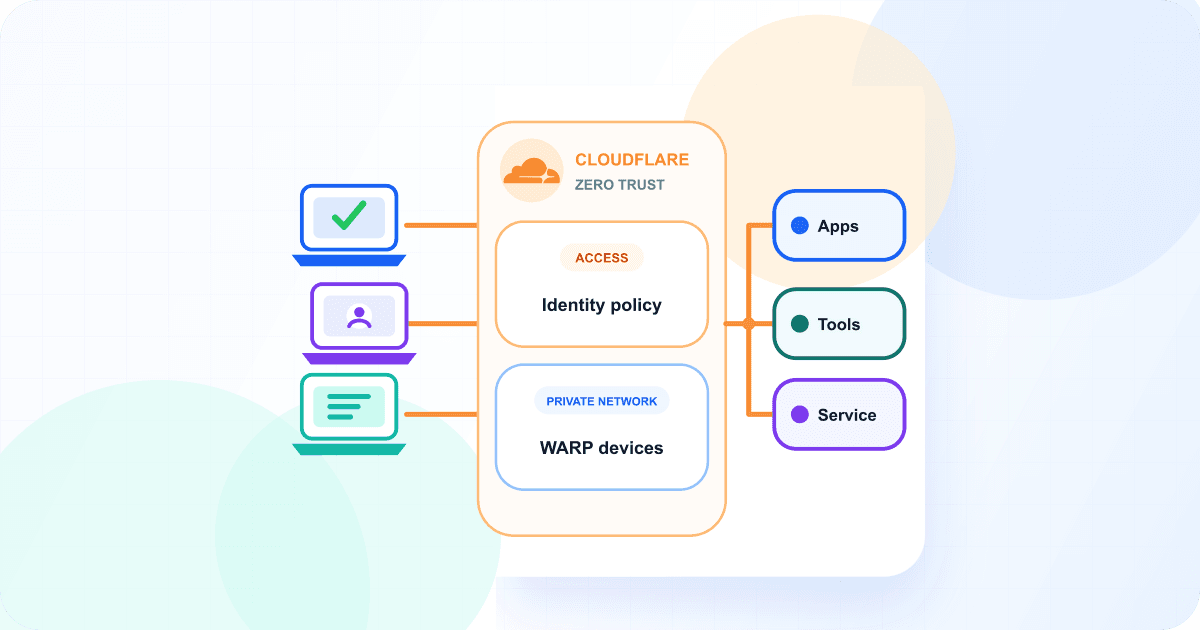
Choose how users will connect
Cloudflare calls the first path a public hostname application protected by Cloudflare Access. The second path uses private network access and private hostname routing. In Wodby, these appear as the Protected and Private network access types.
Cloudflare Access
Users open a hostname in your Cloudflare DNS zone from a normal browser. Cloudflare checks the selected identity policy before forwarding traffic through the managed Tunnel.
Wodby access type: Protected
Private network
Users open the Wodby technical hostname from a device routed through Cloudflare One Client and WARP. There is no Internet-facing Cloudflare Access login page.
Wodby access type: Private network
What both share
Wodby creates and runs a cloudflared connector next to the app, creates a managed Cloudflare Tunnel, and disables the matching route on Wodby's public gateway. The difference is what Cloudflare puts in front of that Tunnel and how the user's traffic reaches it.
What you need
- A Wodby account and a Kubernetes cluster using app routing.
- A Wodby app with at least one enabled external HTTP endpoint.
- A Cloudflare account with a Zero Trust organization.
- Permission to create a custom Cloudflare User API Token.
Cloudflare Access also needs an active DNS zone and a reusable Allow policy. Private network access instead needs enrolled Cloudflare One devices and an appropriate WARP device profile.
1. Create the Cloudflare API token
Copy your Cloudflare Account ID, then open My Profile → API Tokens and create a custom User API Token. Do not use an account API token because its policy editor does not expose the required zone permission rows.
Required for both cases
- Account / Cloudflare One Connector: cloudflared / Edit
Add for Cloudflare Access
- Account / Access: Apps and Policies / Edit
- Zone / Zone / Read
- Zone / DNS / Edit
Add for Private network
- Account / Cloudflare One Networks / Edit
Under Account Resources, include the intended account. For Cloudflare Access, include only the zones Wodby may publish under Zone Resources. Add both mode-specific groups if the integration will be used for both cases.
Permission validation
Saving the integration validates the token and shared Tunnel permission. Missing permissions for the other cases appear as notices. When an app is created, Wodby validates every permission and resource scope required by its selected access type before deployment starts.
2. Create the Wodby integration
- Open Integrations in the Wodby dashboard and select New integration.
- Choose Cloudflare, then select the Application Access type.
- Enter the Account ID and API token.
- Create the integration and review any permission notices for a mode you may want to use later.
Case 1: Protect a public hostname with Cloudflare Access
Use this path when users should reach the app from any browser after signing in through your identity provider. The hostname is publicly resolvable, but Cloudflare Access denies requests that do not match the selected policy.
Prepare Cloudflare
- Make sure the intended DNS zone is active in the same Cloudflare account.
- Open Zero Trust → Access controls → Policies and create a reusable Allow policy. This policy decides which identities and device conditions may enter.
Configure Wodby
During new app creation, configure Access in Step 4, App settings. For an existing app environment, open Settings → Access. Then:
- Set the top-level Access mode to Protected.
- Select the Cloudflare Application Access integration.
- Set Access type to Protected.
- Choose Entire app or Selected endpoints.
- Select the DNS zone and reusable Access policy.
- Choose a hostname structure and confirm the suggested primary hostname, or replace it with another hostname in the selected zone.
| Structure | Example | Certificate |
|---|---|---|
| Flattened | mailpit-dev-cms.example.com | Cloudflare Universal SSL |
| Hierarchical | mailpit.dev.cms.example.com | Customer-managed Advanced Certificate |
Flattened is the safe default. Before using Hierarchical, create an active Advanced Certificate covering the exact primary hostname and its wildcard children. Wodby does not create, inspect, or renew that certificate.
Verify Cloudflare Access
- Wait for the app deployment and Application Access task to complete.
- Open the Cloudflare hostname shown in the app header or route list from a normal browser.
- Confirm Cloudflare asks for authentication and that an allowed identity reaches the app while a denied identity does not.
Case 2: Keep the app on a Cloudflare private network
Use this path when the app should not have a public entry point at all. Users must connect their device to your Cloudflare Zero Trust organization before they can reach the app.
Prepare Cloudflare One devices
- Enroll every authorized device in the Cloudflare One Client.
- In Traffic policies → Traffic settings, enable Allow Secure Web Gateway to proxy traffic and select both TCP and UDP. TCP carries the HTTPS connection to the app. UDP is required for the private DNS query that resolves the hostname through the managed Tunnel connector.
- Make sure
100.80.0.0/16and2606:4700:0cf1:4000::/64route through WARP. In Exclude mode, remove the broader100.64.0.0/10exclusion. You can add back exclusions for unused CGNAT ranges, but100.80.0.0/16must continue to route through WARP. In Include mode, add both required ranges. - Check Local Domain Fallback. The suffix used by your Wodby technical hostnames must not be sent to a local DNS resolver; Cloudflare Gateway needs to answer DNS for the private hostname route.
See Cloudflare's private-hostname device connectivity guide for the current Zero Trust dashboard steps.
Required device connectivity
These are connectivity requirements, not optional Gateway inspection settings. Without UDP proxying, the private hostname may return NXDOMAIN. Without TCP proxying or the required Split Tunnel routes, DNS may succeed but the HTTPS connection will not reach the managed Tunnel.
Configure Wodby
- Set the top-level Access mode to Protected.
- Select the Cloudflare Application Access integration.
- Set Access type to Private network.
- Choose Entire app or Selected endpoints.
This case does not ask for a DNS zone, Access policy, hostname structure, or primary hostname. Wodby reuses each selected endpoint's stable technical hostname and managed HTTPS certificate, creates a private hostname route, and keeps the matching public route disabled.
Verify private network access
- Wait for the app deployment and Application Access task to complete.
- Connect an enrolled device to Cloudflare One.
- Open the Cloudflare-marked effective URL shown by Wodby in the app header or route list.
- Disconnect Cloudflare One and confirm the same URL can no longer reach the app.
The technical hostname is not a secret and may still resolve outside WARP. Privacy comes from Wodby suppressing its public route and Cloudflare routing enrolled-device traffic through the private hostname route.
Choose the access scope
Entire app
Every enabled external HTTP destination uses Cloudflare. A Drupal or WordPress app can have separate protected addresses for the site and tools such as Mailpit.
Selected endpoints
Only the chosen HTTP destinations use Cloudflare. Choose this when the main site should stay public but an admin interface, preview service, or operational tool should not.
HTTP endpoints and published ports
Application Access covers HTTP endpoints. It does not place arbitrary TCP or UDP ports behind Cloudflare Access or the private hostname route.
- Entire app scope requires public TCP and UDP ports to be unpublished.
- Selected endpoints scope can leave other ports published, but those ports remain public and outside Application Access.
- Database ports and other unpublished internal ports remain available only inside the Kubernetes network.
Troubleshooting
- Cloudflare Access does not ask for a login: check that the selected Allow policy is attached to the managed application and that the hostname is proxied through Cloudflare.
- The Protected hostname has a TLS error: use Flattened hostnames or confirm the required Advanced Certificate for a Hierarchical hostname is active.
- The private hostname does not open: confirm the device is enrolled and connected, TCP and UDP proxying are enabled, and both private-hostname IP ranges go through WARP.
- Private DNS returns the public destination: review Local Domain Fallback and DNS policies that may capture the Wodby technical hostname before Cloudflare Gateway.
- App creation reports a missing permission: add the permission group for the selected access type and check that the token includes the selected account and zone.
- Access shows an error: open the Access task from the app state indicator and review the provider or connector step that failed.
Changing or removing access
Update the scope or selected endpoints from Settings → Access. To switch between Cloudflare Access and Private network, remove Access and enable it again with the other type. Wodby finishes cleanup before it creates the replacement provider resources.
Removing Access restores the matching ordinary public routes. Deleting the app removes its connector, provider routes, managed DNS records, Tunnel, and managed Access application as applicable. Cloudflare zones, reusable Access policies, certificates, device enrollment, WARP settings, and Gateway policies remain in your account.
Protect your app
Create one Cloudflare Application Access integration, then choose Cloudflare Access or Private network for the whole app or only the endpoints you select.
Open WodbyFor the product overview, see Application Access. For the complete provider contract and cleanup behavior, see the Cloudflare provider documentation and Application Access documentation.